
How to Fix Blue Screen of Death (BSOD) on Windows 11 – Step-by-Step Guide
The Blue Screen of Death (BSOD) is one of the most common and frustrating errors in Windows 11. It appears when your system encounters a critical problem and shuts down to prevent damage. This guide explains what BSOD is, why it happens, and how to fix it step by step.
What is Blue Screen of Death (BSOD)?
The Blue Screen of Death is a system crash error that occurs when Windows cannot recover from a fatal error. The screen usually displays a sad face and a stop code such as:
CRITICAL_PROCESS_DIED
IRQL_NOT_LESS_OR_EQUAL
SYSTEM_SERVICE_EXCEPTION
These codes help identify the cause of the problem.
Common Causes of BSOD in Windows 11
BSOD errors are usually caused by:
Corrupted system files
Faulty drivers
Windows updates issues
Hardware problems (RAM, SSD, GPU)
Malware or incompatible software
Method 1: Restart Your PC (Quick Fix)
Sometimes BSOD happens due to a temporary glitch. Restarting the computer can resolve it instantly.
Steps:
Press and hold the Power button
Wait 10 seconds
Turn your PC back on
If BSOD does not appear again, the issue was temporary.
Method 2: Boot Windows 11 into Safe Mode
Safe Mode starts Windows with minimal drivers and helps identify the real issue.
Steps to Enter Safe Mode
Press Shift + Restart
Click Troubleshoot
Click Advanced Options
Click Startup Settings
Click Restart
Press 4 to enable Safe Mode
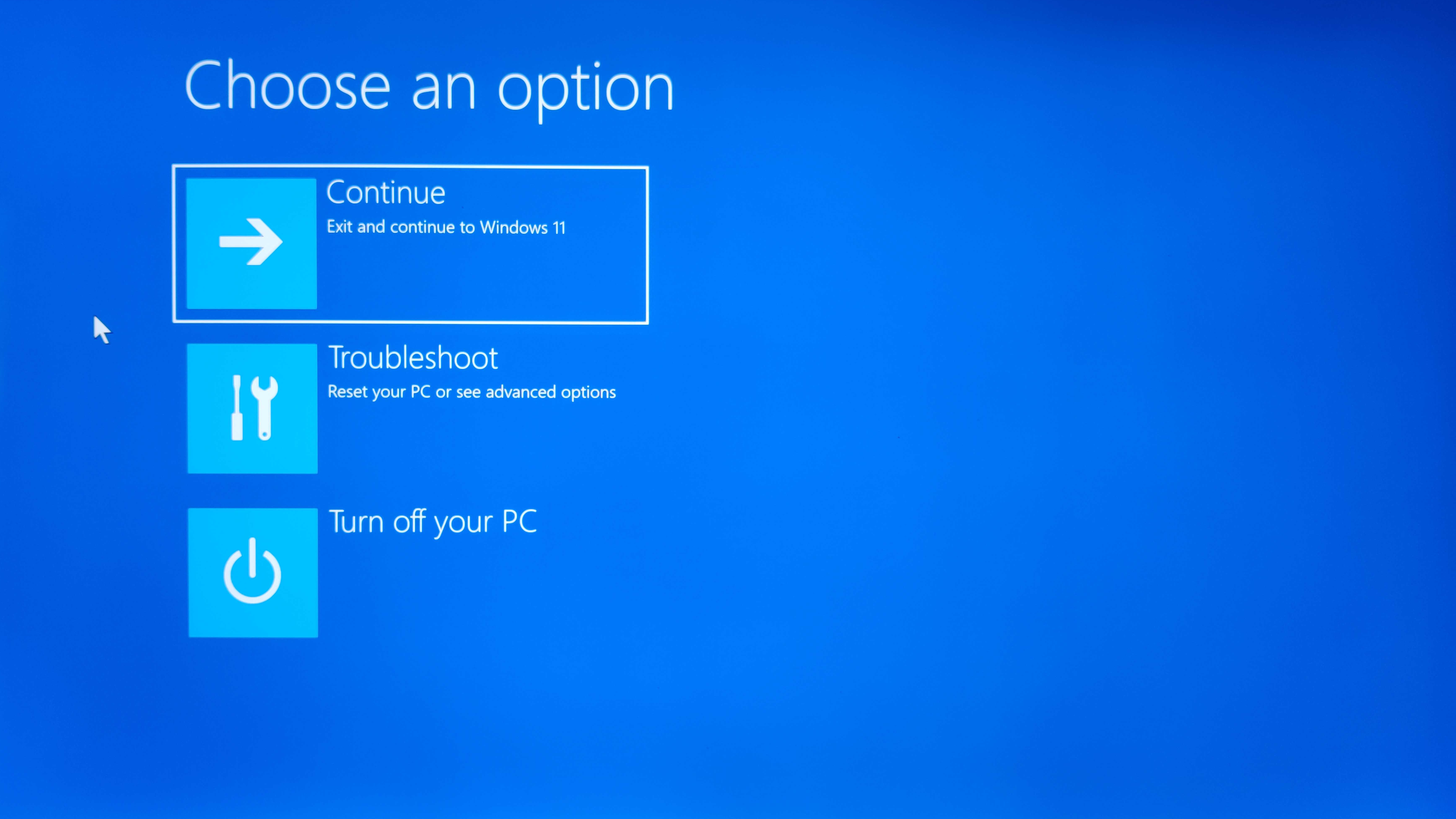
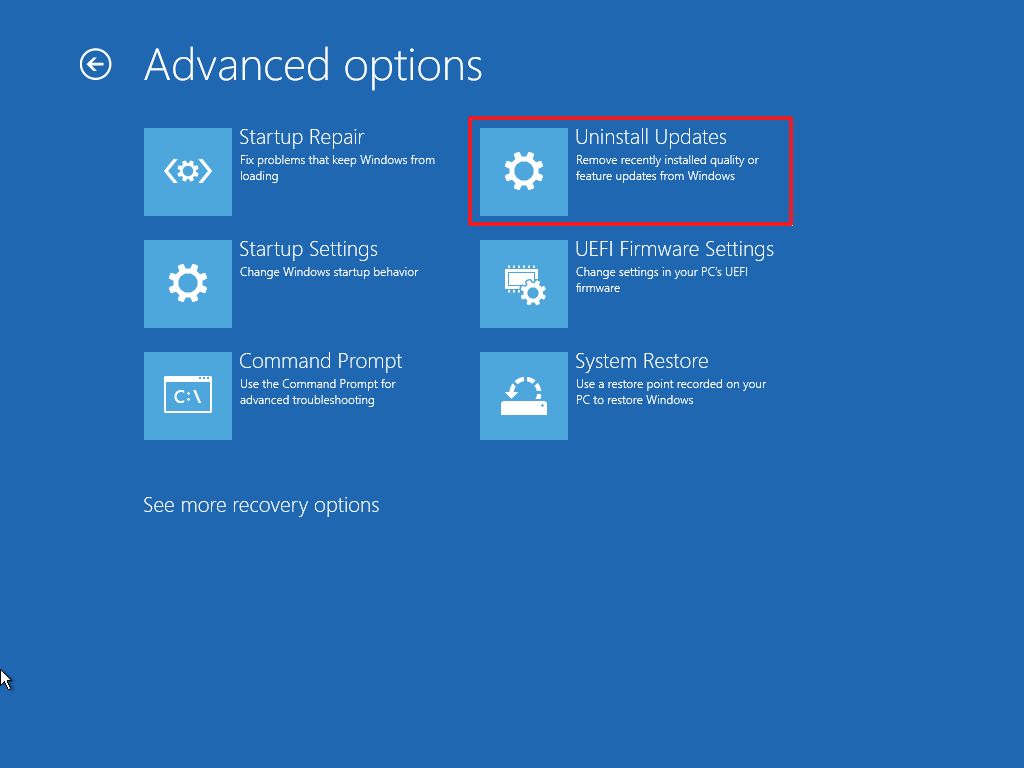
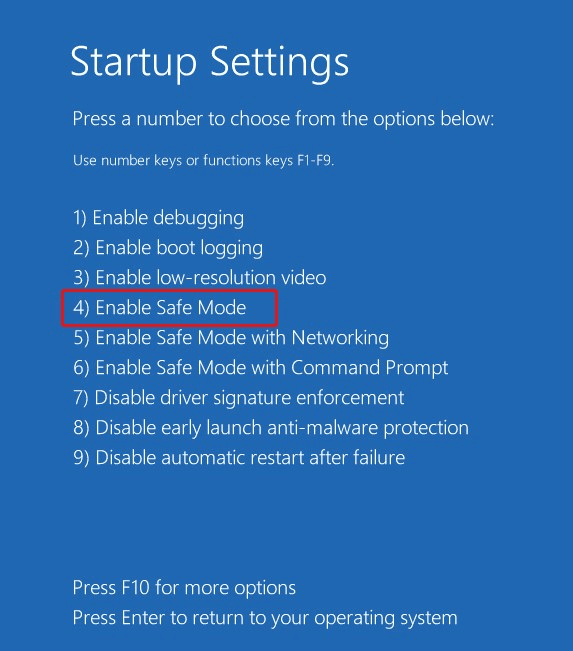
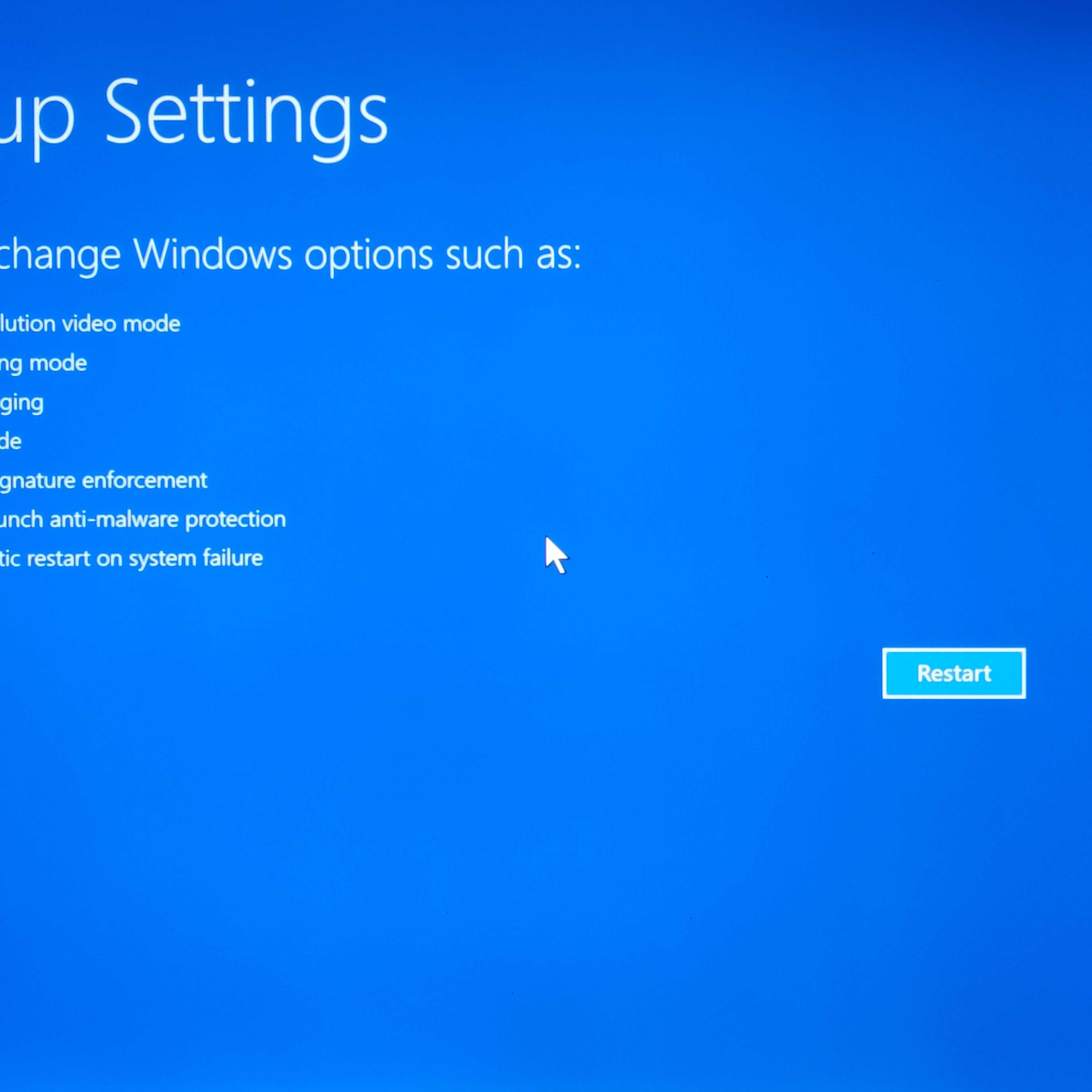
Once inside Safe Mode:
Uninstall recent drivers
Remove newly installed software
Method 3: Update Windows 11
Outdated Windows files often cause system crashes.
Steps
Press Windows + I
Go to Windows Update
Click Check for updates
Install all available updates
Restart your PC
Updating Windows fixes bugs and compatibility issues.
Method 4: Update or Reinstall Drivers
Faulty drivers are the #1 cause of BSOD errors.
Steps
Right-click Start
Click Device Manager
Expand Display Adapters
Right-click your graphics driver
Click Update Driver
Repeat for:
Network drivers
Audio drivers
Storage controllers
Method 5: Uninstall Recent Windows Updates
Sometimes a Windows update introduces bugs that trigger BSOD.
Steps
Open Settings
Go to Windows Update
Click Update history
Click Uninstall updates
Remove the latest update
Restart your computer and check if the issue is resolved.
Method 6: Run SFC and DISM Commands (Fix Corrupted Files)
Corrupted system files are a major reason for blue screen crashes.
Steps
Search Command Prompt
Right-click → Run as Administrator
Run the following commands one by one:
sfc /scannow
After completion, run:
DISM /Online /Cleanup-Image /RestoreHealth
These tools repair damaged Windows files automatically.
Method 7: Check Your RAM and Hardware
If BSOD keeps appearing, your hardware might be faulty.
Steps to Check RAM
Press Windows + R
Type:
mdsched.exe
Click Restart now and check for problems
Windows will scan your memory for errors.
Method 8: Perform System Restore
If BSOD started recently, you can restore your system to a previous working state.
Steps
Search Create a restore point
Click System Restore
Select a restore point before the error started
Click Next → Finish
This will roll back system settings without deleting personal files.
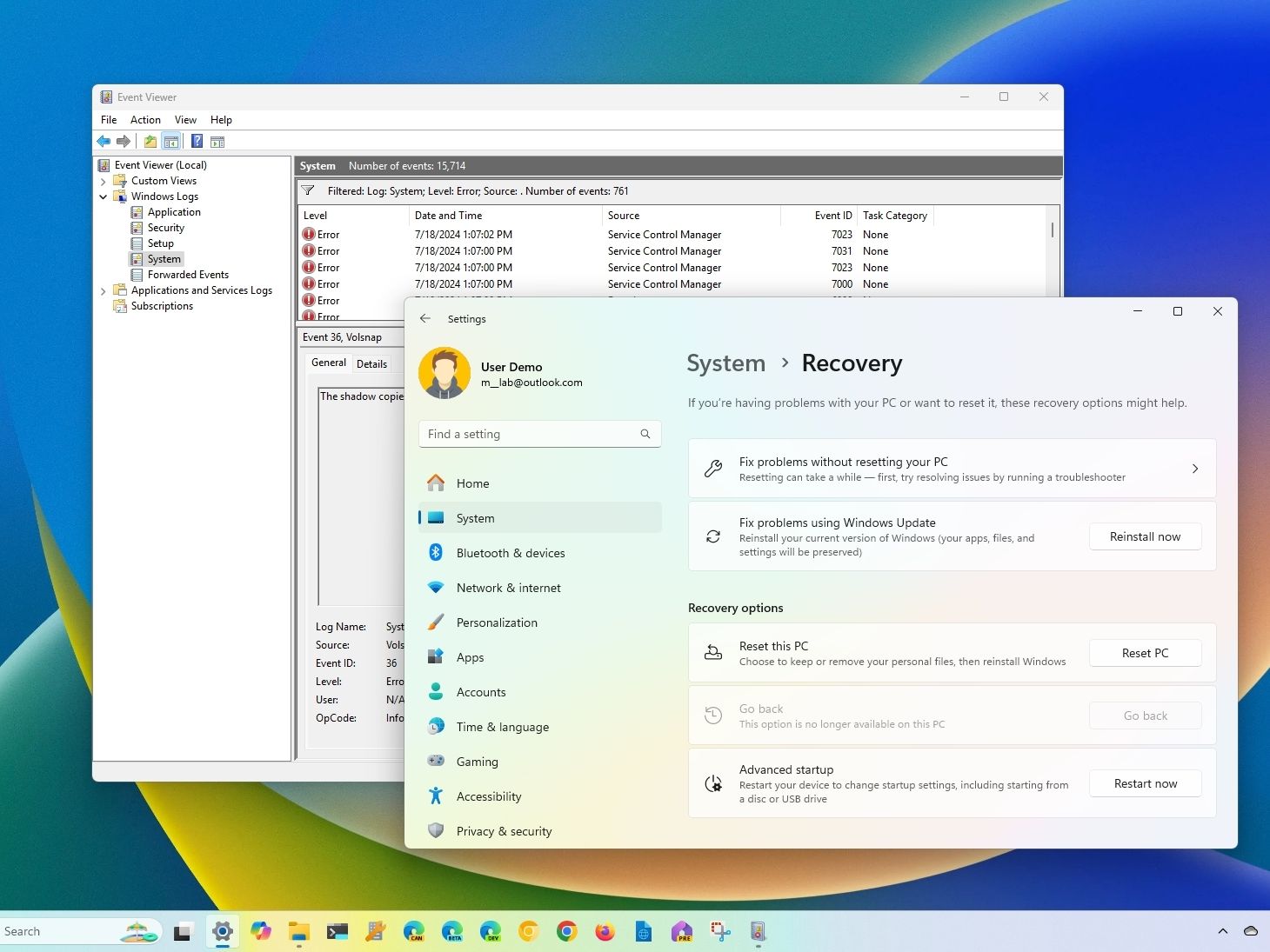
Method 9: Reset Windows 11 (Last Option)
If none of the methods work, resetting Windows is the final solution.
Steps
Open Settings
Go to System → Recovery
Click Reset this PC
Choose:
Keep my files
Remove everything
This reinstalls Windows and fixes all system errors.
Tips to Prevent BSOD in the Future
Keep Windows updated
Avoid installing unknown software
Update drivers regularly
Use antivirus protection
Avoid sudden power cuts